

TL;DR #
If you’re a data scientist, you can survive in the terminal with just these 8 simple commands1
ls– list files in the current directorycd– change directory, e.g.cd examplespwd– print working directory (shows the full path to your current folder)nano– a simple text editor. Write your changes, press CTRL + O, then ENTER to save. CTRL + X to quit.mkdir– create a new directory, e.g.mkdir examples_2mv– move or rename files/directories, e.g.mv test1.txt test2.txt(renames the file)cp– copy files, e.g.cp test1.txt test2.txt(makes a duplicate)sudo– short for “super user do”, lets you run commands with admin rights, e.g.sudo nano /etc/passwd
It’s worth mentioning that these commands should work the same way on macOS too!
I had this idea to create a sort of “survival guide” for data scientists who aren’t super comfortable with the terminal. While you can often get by without touching it, there are moments where it’s just faster—or unavoidable.
Once you get the hang of it, the terminal can actually make things easier and open up new ways of getting stuff done.
Whether you’re just starting out or have been in the field for years, or even if you’re not in a technical role (say you’re a project manager), this post is for you. The idea is to help you dip your toes into something that might seem intimidating — yes, that black screen you’ve seen hackers use in movies.
You might not need it every day, but getting comfortable with the terminal could inspire you to explore new tools, or help you get things done when GUI options fall short. And if you do any coding, you’ll likely run into platforms that require terminal use at some point.
A Terminal, Right in Your Browser #
There are a lot of tutorials out there, but many skip over the hands-on part—or make it a hassle to even get started.
Right above, you should see a Linux terminal. This isn’t just an emulator—it’s a real virtual machine running Linux, directly in your browser. It might take a few seconds to load depending on your internet and phone/pc.
Fun fact: the entire (barebones) system you’ll be using is only 10MB—that’s less than 5 times the size of background image of this post, or just one-ninth the size of a 29-second video of Pluto practicing his tricks.
Don’t worry about breaking anything—it runs in your browser. If things go sideways, just refresh the page or open it in incognito mode to reset the session. I’ll eventually add a reset button to make this easier.
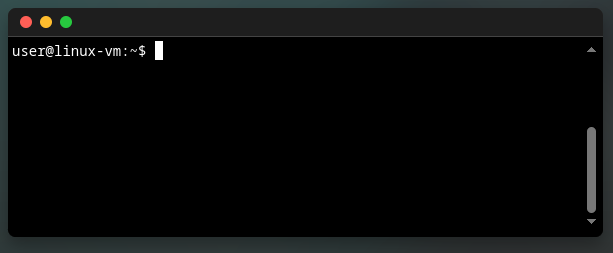
If everything loaded properly, it should look like this:
Navigating the File System #
ls – list
#
When a terminal opens, you’re dropped somewhere in the file system—most likely in your home directory (kind of like the folder in Windows that holds Documents, Downloads, etc.). In this virtual machine, it will definitely be your home folder.
Start by listing what’s there:
ls
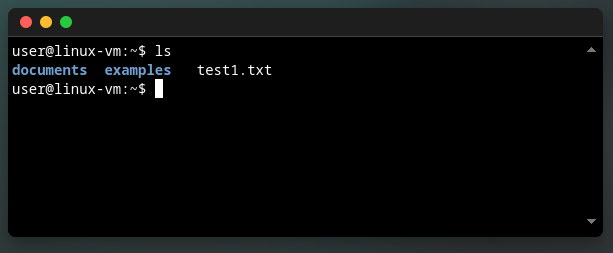
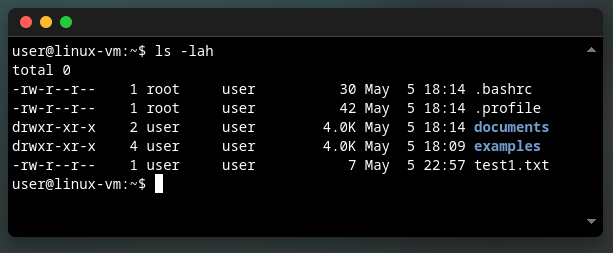
ls commandTo make ls even more useful, you can slightly change its behaviour by passing flags:
-l– long format (detailed view, one entry per line)-a– shows all files, including hidden ones (files starting with.)-h– human-readable sizes (KB, MB, GB, etc.)
ls -lah
ls command with additional flagscd – change directory
#
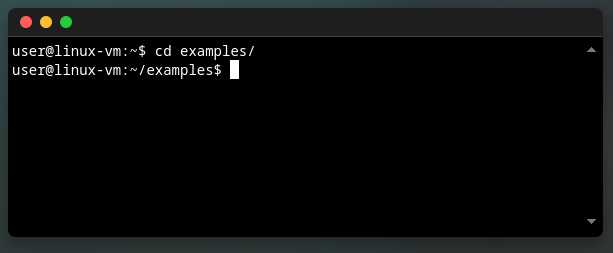
Want to move into a different folder? Use cd:
cd examples
To move up one level (to the parent directory), use:
cd ..
There are a few handy shortcuts you’ll see a lot when using cd:
.- refers to the current directory..- takes you up one level to the parent directory~- is a shortcut to your home directory
cdpwd – print working directory
#
pwd will show you where you are in the file system:
pwd
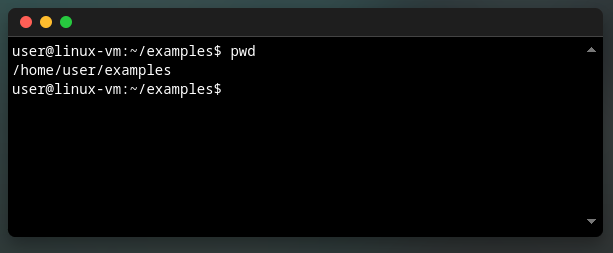
pwd showing the absolute path to the current directoryBasic File Operations #
nano – simple text editor
#
nano is a beginner-friendly text editor that works right in the terminal.
To open or create a file:
nano hello.txt
You can use arrow keys to navigate within the file, then you can start typing your content. When you’re done:
- Save: CTRL + O, then ENTER
- Quit: CTRL + X
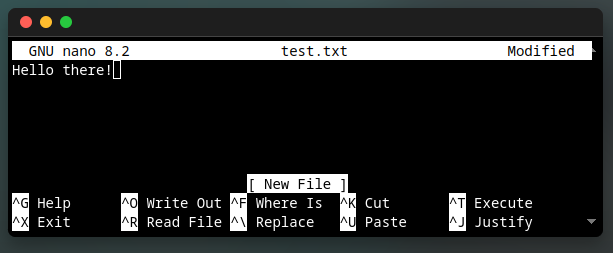
nanomkdir – make directory
#
Create a new folder:
mkdir pictures
This creates a pictures directory in your current location.
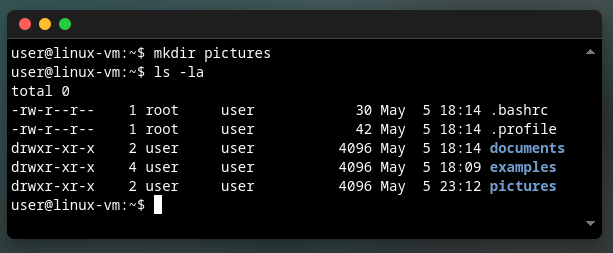
mkdirmv – move or rename
#
To move or rename a file:
mv examples/todo.txt todo.txt
This moves todo.txt from the examples folder to your current one.
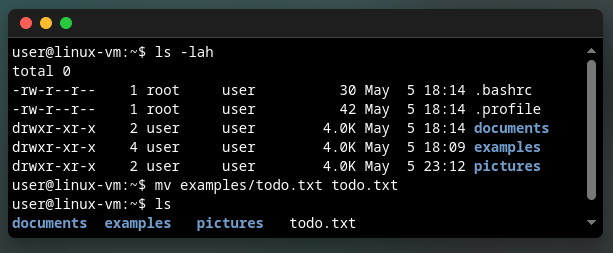
mvcp – copy
#
Use cp to duplicate a file:
cp examples/projects/alpha/draft.txt draft_new.txt
The original stays where it is; you get a new copy with a different name.
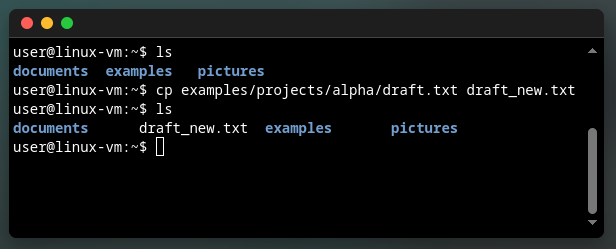
cpsudo – Super User Do
#
Permissions are a deeper topic (I’ll cover those in a future post), but for now just know that sometimes you can’t run a command or access a file unless you’re an “admin” (a.k.a. root user).
That’s where sudo comes in:
sudo nano /etc/passwd
This lets you run the command with elevated privileges.
sudo isn’t available in the browser-based terminal (yet)!
Bonus Tip for WSL (Windows Users) #
Using Windows Subsystem for Linux? Want to open your current WSL directory in Windows File Explorer?
explorer.exe .
Don’t forget the . at the end—it refers to your current folder!
-
Technically, you could survive without
cpandmv, but they’re very handy—especially for moving config files around. ↩︎